Updating Console Firmware
This guide will cover how to update your Onyx hardware, both Consoles and USB PC devices.
All firmware files are copied onto the console or PC when Onyx is installed.
When to update firmware:
It is recommended to update the firmware after installing a new version of Onyx.
You will receive a warning message, "Old Firmware Detected," if Onyx detects a device with older firmware.
Steps to Update:
1. Open the Firmware Update tool (Menu > Tools > Diagnostic > Firmware Update)

2. Select the first item in the list. Take note of the ID number (Example show below is E102)
**The "IIC PCB scan failed" can be ignored**
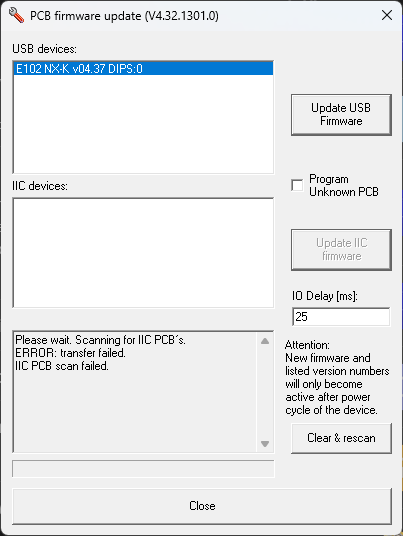
3. Press the "Update USB Firmware" button
4. Navigate to the correct folder for the selected device
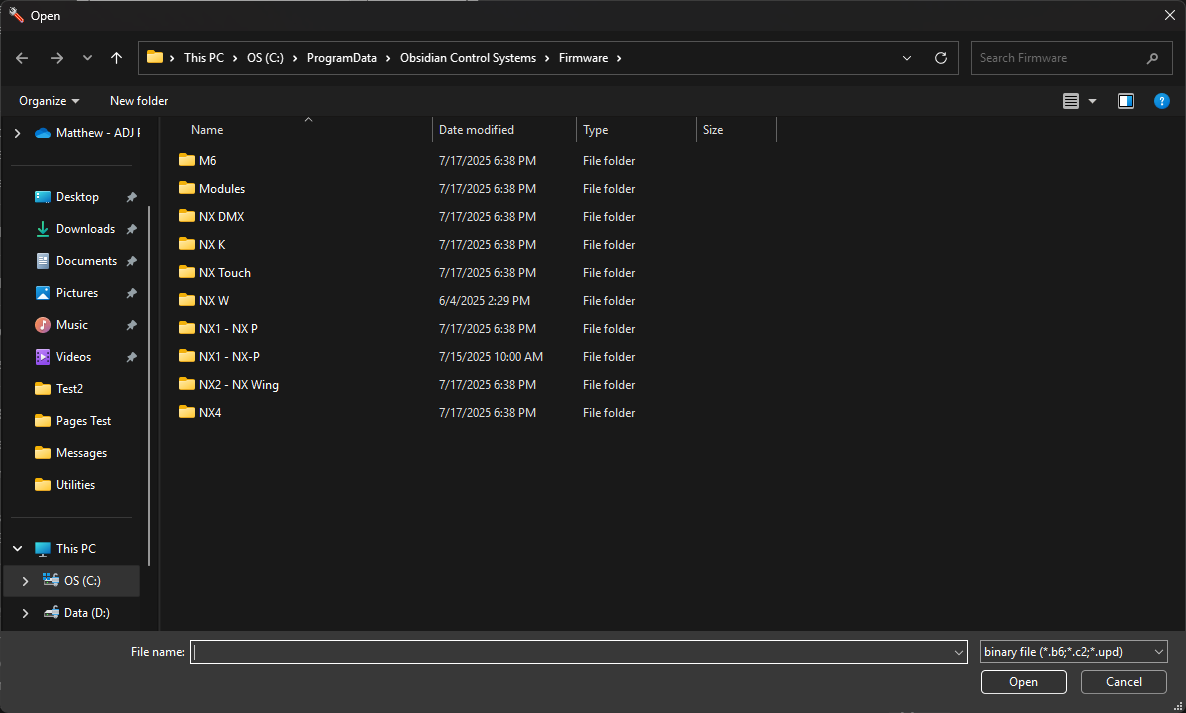
5. Select the newest firmware file that has the same device ID
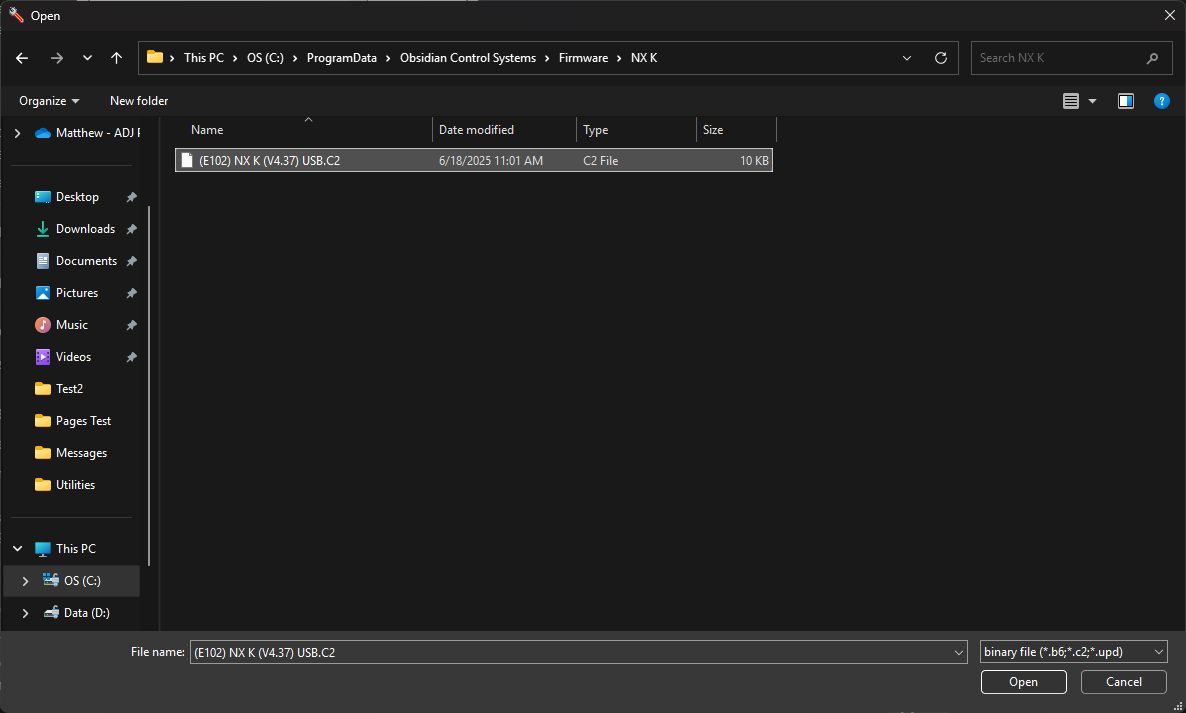
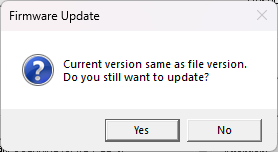
6. Follow the onscreen prompts
7. Check for the "Verify OK, Firmware update Success" message in the lower info screen.
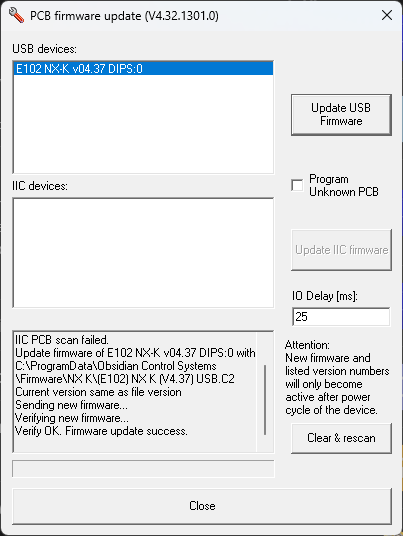
8. Repeat steps 2-7 for all devices in the first list.
9. Press Close, then restart the console. If on PC, power cycle or unplug all Onyx USB devices.